カテゴリー
D-Studio プログラム

pyQtでGUI上画像表示

PythonのGUI開発においての覚書

GUIで画像表示を行う場合のあれこれ

#!/usr/bin/python3
# -*- coding: utf-8 -*-

from PyQt5.QtWidgets import QMainWindow, QLabel


class ImgView(QMainWindow):

	def __init__(self):
		super().__init__()
		self.initUI()

	def initUI(self):
		# 画像表示領域 ラベルを作ってその中に画像を置く
		self.lbl_image = QLabel(self)
		self.lbl_image.move(pos_x, pos_y)
		self.lbl_image.setFixedWidth(width)
		self.lbl_image.setFixedHeight(height)

        def viewevent(self):
                #Pixmapフォーマットの画像を表示させる
                self.lbl_image.setPixmap(pix)
</code></pre>
<!-- /wp:code -->

[解説]

・表示部分はQLabelを利用

・表示させるのはPixmapの画像

要はPixmapファイルが作れれば結構簡単に画像表示できます!

なのでpillowで取得した画像データをpixmapへ変換する場合は下記の様に。

from PyQt5 import QtGui

from PIL import Image, ImageOps    

def change_pil_to_pixmap(self, pilimg):
        rgb_im = pilimg.convert('RGBA')
        data = rgb_im.tobytes("raw", "RGBA")
        qim = QtGui.QImage(data, rgb_im.size[0], rgb_im.size[1], QtGui.QImage.Format_ARGB32)
        pix_img = QtGui.QPixmap.fromImage(qim)
        return pix_img

画像データ取得については下記参考

 外部リンク

pillowのフォーマットで色々画像処理できます。

  • 開発紹介

    ソフトウェア開発でお手伝いさせていただいた案件が論文に! http://www.spring8.or.jp/j…


  • スキャンプログラム

    今回研究施設向けのスキャンプログラムの作成を行いました。 こちら新しい技術の導入があり、その技術利用しながら作…


  • TIFヘッダ編集

    久しぶりの投稿はPythonプログラム! D-Studioでは現在Pythonをメインに仕事してます! 研究施…


カテゴリー
D-Studio プログラム

画像リサイズ

Pythonで画像一括リサイズ!

今回は縦長や横長の画像を正方形にリサイズ。余白部分はそのサイズの白色画像を合成。

画像サイズ指定された時に一気に変更かけられうので便利!

#!/usr/bin/env python3
# -*- coding: utf-8 -*-


import glob
import os.path
import cv2
from PIL import Image


#-------------------------------------------------
## main ###
#-------------------------------------------------
if __name__=='__main__':

    #
    path = "/画像置いてるパス/*"
    bgpath = "/白色正方形画像/bg.png"

    # リサイズしたい長い辺のサイズ
    re_length = 1024


    files = glob.glob(path)
    cnt = 1
    for file in files:
        # 拡張子取得
        root, ext = os.path.splitext(file)
        # .jpegだけ表示
        if ext == ".jpeg":
            #name = str(cnt).zfill(4)
            name = basename_without_ext = os.path.splitext(os.path.basename(file))[0]
            path = path.rstrip("*")

            img2 = cv2.imread(file)
            h, w = img2.shape[:2]

            # 変換する倍率を計算
            re_h = re_w = re_length / max(h, w)

            # アスペクト比を固定して画像を変換
            img_res = cv2.resize(img2, dsize=None, fx=re_h, fy=re_w)
            h2, w2 = img_res.shape[:2]

            # 1024x1024の正方形の画像にまとめる。余白は白色
            img1 = img_res
            img_base = cv2.imread(bgpath)

            height, width = img1.shape[:2]
            if height == re_length:
                img_base[0:height, int((re_length-width)/2):width + int((re_length-width)/2)] = img1
            else:
                img_base[int((re_length-height)/2):height + int((re_length-height)/2), 0:width] = img1

            out_dir = path + "resize/"
            if not os.path.exists(out_dir):
                # ディレクトリが存在しない場合、ディレクトリを作成する
                os.makedirs(out_dir)

            cv2.imwrite(out_dir + name+".jpeg", img_base)

        cnt = cnt + 1

今回はCV2を利用してます。

JPGとかPNGはこれで簡単にいけます。

リサイズ時の余白用白色画像は適当に用意してリサイズして利用するのも可能。(今回は1024×1024用意してます)

カテゴリー
プログラム

メルカリのスクレイピング

Pythonでメルカリの検索結果をスクレイピングしてみました。

コードはこちらのページを参照してます。

その他Googleで色々参照しながら作成しております。

準備

①seleniumのインストール (BeautifulSoupだけでは無理)

②ChromeDriverのDLと、コードと同階層への設置

#!/usr/bin/env python3
# -*- coding: utf-8 -*-

# 指定のURLをブラウザで開く
# メルカリの検索一覧は取得できるのか?
# seleniumのインストールとchromedriverのdlで対応

from bs4 import BeautifulSoup
from selenium import webdriver
import time
import os
from selenium.webdriver.chrome.options import Options

#-------------------------------------------------
## main ###
#-------------------------------------------------
if __name__=='__main__':

    BASE_URL = 'https://www.mercari.com'
    next_page_num = 2

    # 100ランク取得
    load_url = "https://www.mercari.com/jp/search/?keyword="
    item = "ルースイソンブラ"

    load_url = load_url + item

    result_array = [['item_name','item_price','url']]

    while True:
      try:
        # Chrome設定
        options = Options()
        options.add_argument('--headless')

        # 対象URLにリクエスト
        driver = webdriver.Chrome("./chromedriver", options=options)
        driver.get(load_url)
        time.sleep(5)

        # 文字コードをUTF-8に変換し、html取得
        html = driver.page_source.encode('utf-8')
        soup = BeautifulSoup(html, "html.parser")

        # tagとclassを指定して要素を取り出す
        item_name = soup.find('div', class_='items-box-content clearfix').find_all('h3', class_='items-box-name font-2')
        item_price = soup.find('div', class_='items-box-content clearfix').find_all('div',class_='items-box-price font-5')
        item_url = soup.find('div', class_='items-box-content clearfix').find_all('a')

        pager = soup.find('ul', class_='pager').find_all('a')

        item_num = len(item_name)

        for i in range(0, item_num):
            result_array.append([item_name[i].text,
                                 int(item_price[i].text.replace('¥', '').replace(',', '')),
                                 BASE_URL + item_url[i].get('href')])

       #結果表示
        print(result_array)


        for x in pager:
            if x.text == str(next_page_num):
                next_url = BASE_URL + x.get('href')

        if next_url == '':
            break

        next_page_num += 1
        load_url = next_url
        next_url = ''

        print('nextpagenum:' + str(next_page_num))

        # デバッグなので1ページ目のみで抜ける。
        if next_page_num == 3:
            break


      except Exception as e:
        message = "[例外発生]" + os.path.basename(__file__) + "\n" + "type:{0}".format(type(e)) + "\n" + "args:{0}".format(
                e.args)
        print(message)

      finally:
        # 起動したChromeを閉じる
        driver.close()
        driver.quit()

一応取れました。絞り込みすれば価格調査とかで使えそうです。

定期チェックで最安値更新したらメール送るとかもできそうですね!

カテゴリー
プログラム

PythonでYouTube

PythonでYoutubeの検索結果データを取得する。

今回はYoutube APIを利用。

Google Cloud PlatformのライブラリからYouTube Data API v3を有効にしてIDを取得する必要あり

#!/usr/bin/env python3
# -*- coding: utf-8 -*-

# 指定のURLをブラウザで開く
# YouTubeの解析 API利用

from googleapiclient.discovery import build
from googleapiclient.errors import HttpError


#-------------------------------------------------
## main ###
#-------------------------------------------------
if __name__=='__main__':

    # API情報
    DEVELOPER_KEY = '取得したYouTubeDataAPIのID'
    YOUTUBE_API_SERVICE_NAME = 'youtube'
    YOUTUBE_API_VERSION = 'v3'

    youtube = build(
        YOUTUBE_API_SERVICE_NAME,
        YOUTUBE_API_VERSION,
        developerKey=DEVELOPER_KEY
    )

    search_response = youtube.search().list(
        q='ドリブル',
        part='id,snippet',
        maxResults=50,
    ).execute()

    #print(search_response['items'])

    print('------------------------------------------------------------')
    for vdata in search_response['items']:
        #videoIDが無い場合は飛ばす
        try:
            videoid = vdata['id']['videoId']
            print('動画タイトル', vdata['snippet']['title'])
            print('投稿者名:', vdata['snippet']['channelTitle'])
            print('Channel ID:', vdata['snippet']['channelId'])
            print('URL:https://www.youtube.com/watch?v='+videoid)
            print('------------------------------------------------------------')
        except:
            print("")


実行結果

------------------------------------------------------------
動画タイトル 【完全保存版】2020年のドリブル・テクニック111ワザを全てお見せします!〜しょうちゃん編〜
投稿者名: REGATEドリブル塾
Channel ID: UC4Nrt3aTTnjVAW_ein2nTQQ
URL:https://www.youtube.com/watch?v=6UftkurRtEA
------------------------------------------------------------
動画タイトル 【超絶過ぎる…】サッカーベストドリブルテクニック集!2020/2021 #2
投稿者名: FM247 HD2
Channel ID: UCpgMYaiGuoCsowql_f9WDPw
URL:https://www.youtube.com/watch?v=WW6jFV-LK-Q
------------------------------------------------------------

動画タイトル 超絶ドリブル そこ抜く! えげつないファンタジスタ達のプレー集!► 2020  HD 1080p
投稿者名: FM247 HD2
Channel ID: UCpgMYaiGuoCsowql_f9WDPw
URL:https://www.youtube.com/watch?v=xn3PLOP_f_c
------------------------------------------------------------
動画タイトル ロナウジーニョが本気でドリブルするとこうなる
投稿者名: FM247 HD2
Channel ID: UCpgMYaiGuoCsowql_f9WDPw
URL:https://www.youtube.com/watch?v=jgH6HH45VT4
------------------------------------------------------------
以下50件分表示

カテゴリー
プログラム

Python x Sqlite

PythonでS簡易データベースのSqliteを利用してみる。

SQLiteはアプリなどでよく使われる小規模軽量データベース。

SQLの勉強などやりたい方には最適!

#!/usr/bin/env python3
# -*- coding: utf-8 -*-

# DataBase Sqlite利用

import sqlite3

#-------------------------------------------------
## main ###
#-------------------------------------------------
if __name__=='__main__':

    # DB接続 
    conn = sqlite3.connect('db_test')

    # カーソル接続
    c = conn.cursor()

    # テーブル取得
    c.execute("select * from sqlite_master where type='table'")
    for row in c:
        print(row)

    # テーブル内データ取得
    c.execute("select * from users")
    for row in c:
        print(row)

    try:
        # データ追加処理
        c.execute("INSERT INTO users VALUES (?,?)", (2, 'admin'))


    except sqlite3.Error as e:
       print(e)

    conn.commit()

    conn.close()

あらかじめdb_testというDBにusersテーブルを作成しています。

カテゴリー
D-Studio プログラム

楽天市場のスクレイピング

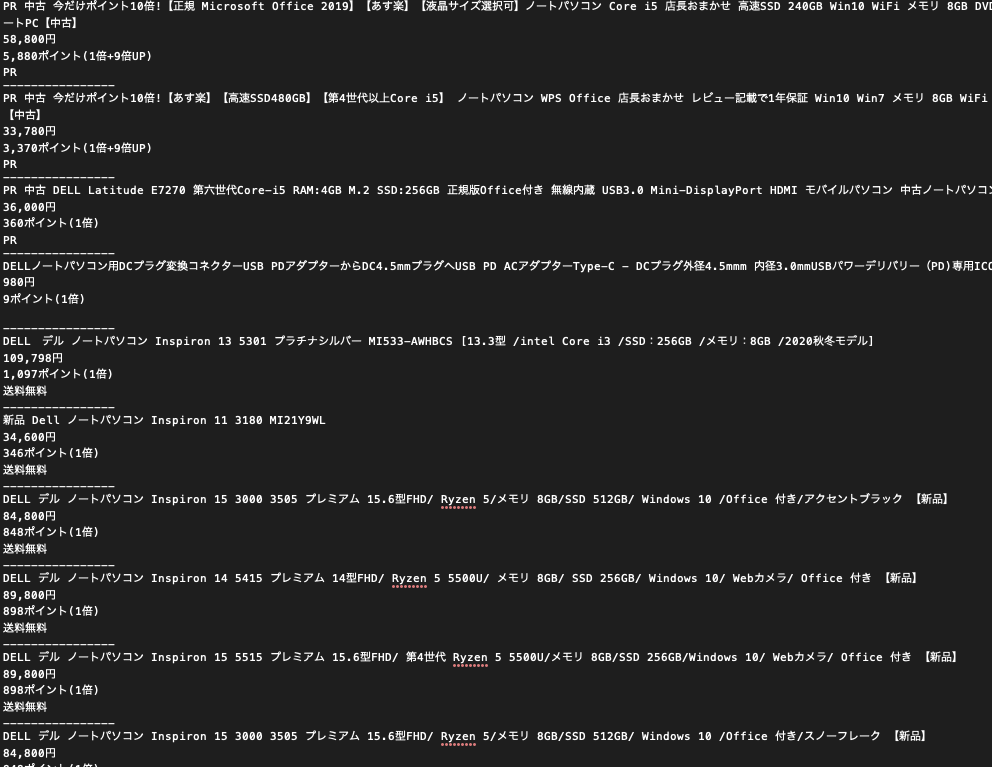
Pythonを利用して、楽天市場の検索結果を抜き出してみる。主要情報は何とか取れる模様。

#!/usr/bin/env python3
# -*- coding: utf-8 -*-

# 指定のURLをブラウザで開く
# 楽天市場の買い物一覧は取得できるのか?

import re
import time
import webbrowser as wb
import requests
from bs4 import BeautifulSoup

#-------------------------------------------------
## main ###
#-------------------------------------------------
if __name__=='__main__':

    # 100ランク取得
    load_url = "https://search.rakuten.co.jp/search/mall/"
    item = "DELL ノートPC"

    load_url = load_url + item

    # HTML取得
    html = requests.get(load_url)
    web_data = BeautifulSoup(html.text, "html.parser")
    #print(web_data)

    items = web_data.select(".searchresultitem")

    i=0

    for item in items:
        title = item.select_one(".title")
        print(title.text)
        price = item.select_one(".important")
        print(price.text)
        point = item.select_one(".points")
        print(point.text)
        sendv = item.select_one(".dui-tag")
        print(sendv.text)
        print("----------------")

PR消したり、ページ対応も簡単なので、色々データどりはできそうですね。

結果画像⬆︎

カテゴリー
プログラム

TIF画像読み込み

まずは読み込みクラス。numpy配列で出力。

#!/usr/bin/env python3
# -*- coding: utf-8 -*-


import os.path
import numpy
from PIL import Image


class data_get:

    def __init__(self):
        return


    """
      (Purpose)
           tiffファイルからデータ部分を抜き出す
           in :filename          入力ファイルパス
           out:outdata           出力配列(2次元のnumpy)

      (History)
         2017/11/30 作成
    """
    def get_tiff_data(self, filename):
        # 拡張子確認
        root, ext = os.path.splitext(filename)
        if ext in ['.tif','.tiff']:
            # TIFFファイル取り込み 配列化
            img = Image.open(filename)
            ar_width, ar_height = img.size
            outdata = img.getdata()
            outdata = numpy.reshape(outdata, (ar_height, ar_width))
        else:
            return None

        return outdata
カテゴリー
プログラム

設定ファイル読込

Pythonで設定ファイルを簡単に読み込む

⬇︎ini.txt

[BaseSetting]
posx = 512
posy = 256
threshold_low = 50
threshold_high = 200

[File]
inputTif = input.tif

#!/usr/bin/env python3
# -*- coding: utf-8 -*-

# 初期化ファイル読み込み

import configparser


#-------------------------------------------------
## main ###
#-------------------------------------------------
if __name__=='__main__':

    inifilePath = "ini.txt"

    if not os.path.exists(inifilePath):
        print(inifilePath + "is not Exist.")
        exit()

    config_ini = configparser.ConfigParser()
    config_ini.read(inifilePath, encoding='utf-8')

    posx = config_ini['BaseSetting']['posx']
    posy = config_ini['BaseSetting']['posy']

    print(posx)
    print(posy)
カテゴリー
プログラム

Pythonで処理時間計測

Pythonで高速化する場合に必須となるのが処理速度計測numpyとかlistとか混在した場合に非常に遅くなる場合があるので注意!

#!/usr/bin/env python3
# -*- coding: utf-8 -*-


import time
import numpy as np


#-------------------------------------------------
## main ###
#-------------------------------------------------
if __name__=='__main__':
    print("Hello Python!" )
    list10000 = [0] * 10000


    start_time = time.time()
    for i in range(0,len(list10000)-1):
        list10000[i] = i
    elapsed_time = time.time() - start_time
    print ("list 10000:{0}".format(elapsed_time) + "[sec]")

    nplist = np.zeros(10000)
    
    start_time = time.time()
    for i in range(0,len(nplist)-1):
        nplist[i] = i
    elapsed_time = time.time() - start_time
    print ("nplist 10000:{0}".format(elapsed_time) + "[sec]")
カテゴリー
プログラム

Pythonで座標表示

matplotlibのscatterを利用して座標系の位置を表示

#!/usr/bin/env python3
# -*- coding: utf-8 -*-


import numpy as np
import matplotlib.pyplot as pt

#-------------------------------------------------
## main ###
#-------------------------------------------------
if __name__=='__main__':

    # int型の0で初期化
    fig1 = np.zeros((10,10,2),dtype=np.int)
    fig2 = np.zeros((10,10,2),dtype=np.int)

    fig = pt.figure()
    asp = fig.add_subplot(1, 1, 1)

    for i in range(0,10):
        for j in range(0,10):
            fig1[i][j][0] = j*10
            fig1[i][j][1] = i*10
            fig2[i][j][0] = j*11
            fig2[i][j][1] = i*11
            asp.scatter(fig1[i][j][0], fig1[i][j][1], c='red')
            asp.scatter(fig2[i][j][0], fig2[i][j][1], c='c')

    print(fig1)
    print(fig2)

    asp.grid(True)

    pt.show()